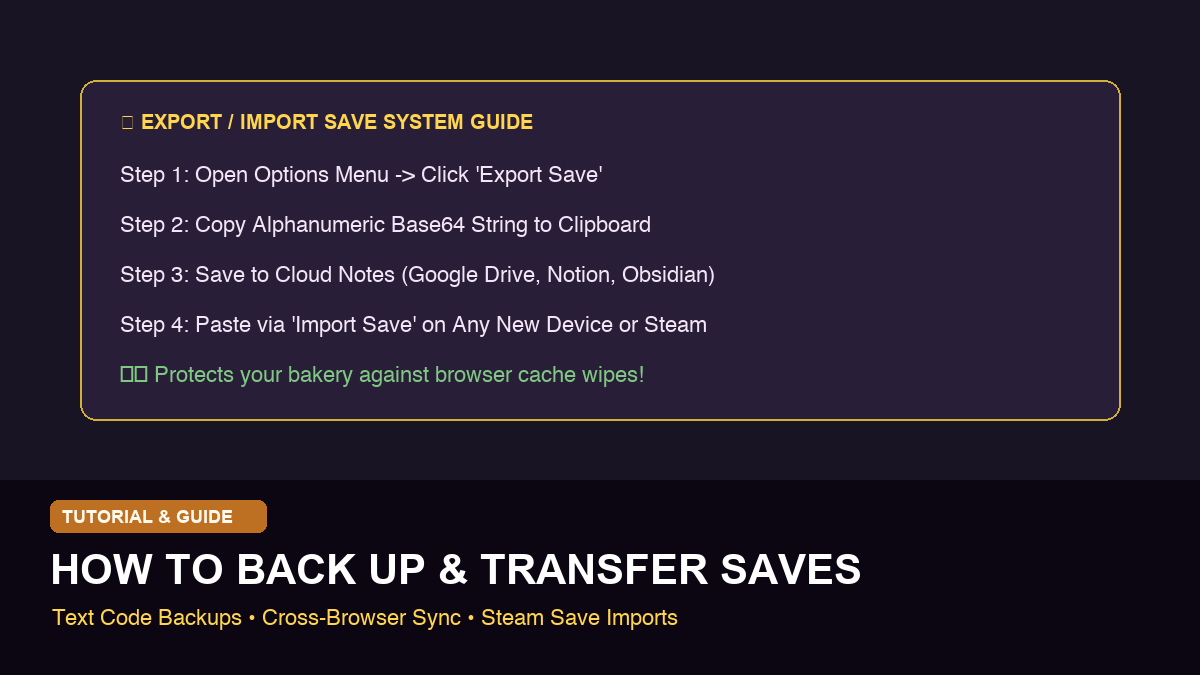
There are few gaming heartbreaks worse than opening your web browser after months of dedicated cookie baking only to discover that an automated browser cleaner or system update cleared your cache and reset your bakery to zero.
Because web games store save data in browser local storage, knowing how to generate, back up, and import text save strings is an essential skill for every serious Cookie Clicker player.
1. How to Export Your Save Code in 3 Steps
Exporting your save is completely built into the game and requires no external tools:
1. Click the 'Options' button located at the top menu bar of your bakery screen.
2. Look for the 'Export Save' button under the General settings column.
3. A pop-up box will display a long alphanumeric text string. Click 'Copy to clipboard' or select the entire string and press Ctrl+C (Cmd+C on Mac).
2. Best Practices for Storing Your Backup
Once you have copied your save code, store it in a secure location outside your web browser:
• Dedicated Text Document: Create a file named 'cookie_clicker_save_backup.txt' on your computer or cloud drive (Google Drive, OneDrive, Dropbox).
• Self-Email / Notes App: Email the save string to yourself or paste it into Apple Notes / Notion / Obsidian.
• Regular Weekly Cadence: Export a fresh string after every major ascension or milestone unlock.
- Always back up before clearing browser cookies or updating your operating system.
- Keep at least two historical backups in case you wish to roll back an accidental ascension.
- Text strings are compact (less than 5 KB) and can be saved anywhere.
3. How to Import a Save to Another Computer or Browser
To resume your bakery on a new laptop, school computer, or mobile device:
1. Open Cookie Clicker 2 on the target browser.
2. Open the 'Options' menu and click 'Import Save'.
3. Paste your backup text string into the text box and click 'Load'. Your entire bakery, buildings, achievements, and Sugar Lumps will restore immediately.
Frequently Asked Questions
Does the game save automatically while playing?
Yes, Cookie Clicker auto-saves locally to your browser every 60 seconds.
Can I transfer my save from the web browser to the Steam version?
Yes! Use the exact same Export/Import process. The Steam version reads standard web save strings perfectly.
Experience Cookie Clicker 2 in your browser
Jump into the free online game. Test out these strategies, catch Golden Cookies, and scale your bakery empire.
More from the Blog
View all postsCookie Clicker Version 2.052 Update: Everything That Changed
A comprehensive player-focused breakdown of the Cookie Clicker 2.052 patch: balance adjustments, new building tiers, seasonal event improvements, and prestige changes.
The History of Cookie Clicker: How Orteil Created the Incremental Genre in 2013
A retrospective look at the origins of Cookie Clicker: how a one-night joke game by French indie developer Orteil sparked the entire multi-billion-dollar idle gaming phenomenon.